
Import a CAD file and specify the CAD data with the Infinitive CAD viewer.
Perquisitions:
Your CAD design file should have at least one version. (See https://cad.onshape.com/help/Content/document_panel.htm on how to create version.)
Integrate your Onshape account, give authorization to Infinitive Platform. (shown below)
Step-by-Step:
CAD data is extremely useful when developing your products, configurators and configurations for your customer's specific needs. CAD data includes detailed infrastructure, geometry, metadata, materials' properties, manufacturing properties, and mapping data. From design to production everything begins with CAD data.
In the products page, https://dev.infinitive.io/products - click on the button with Onshape logo to integration and authentication between the Infinitive platform and Onshape.
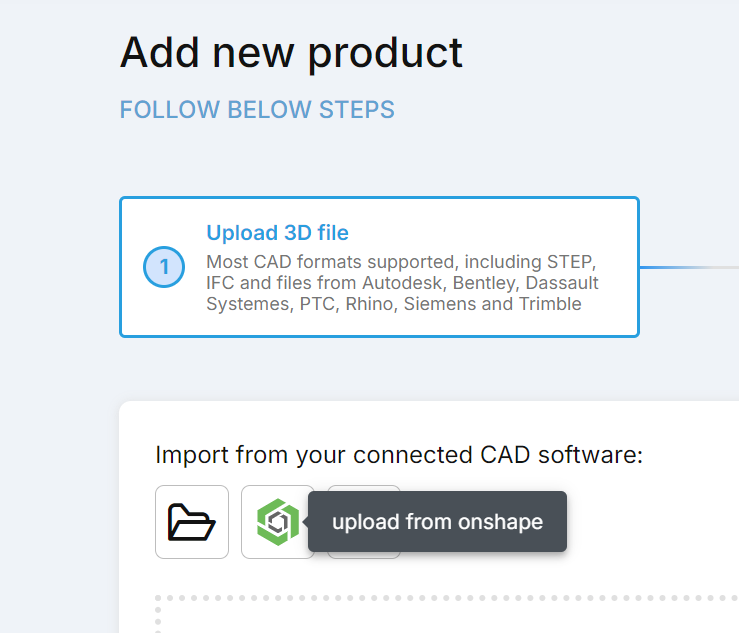
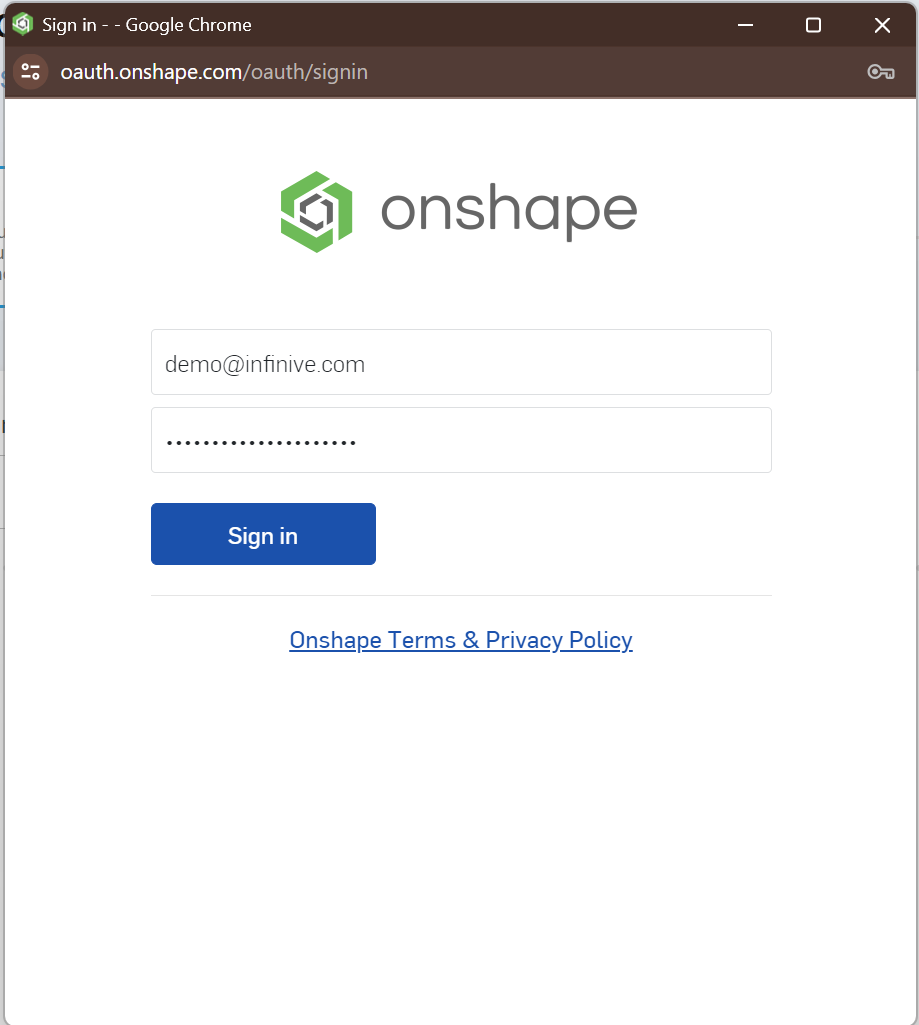
Once you have successfully integrate Onshape and Infinitive platform you will be able to see your designs. You have two options for importing your CAD data from Onshape to Infintive either via URL link or via choosing from the list.

Import CAD via URL Link ->
Copy the URL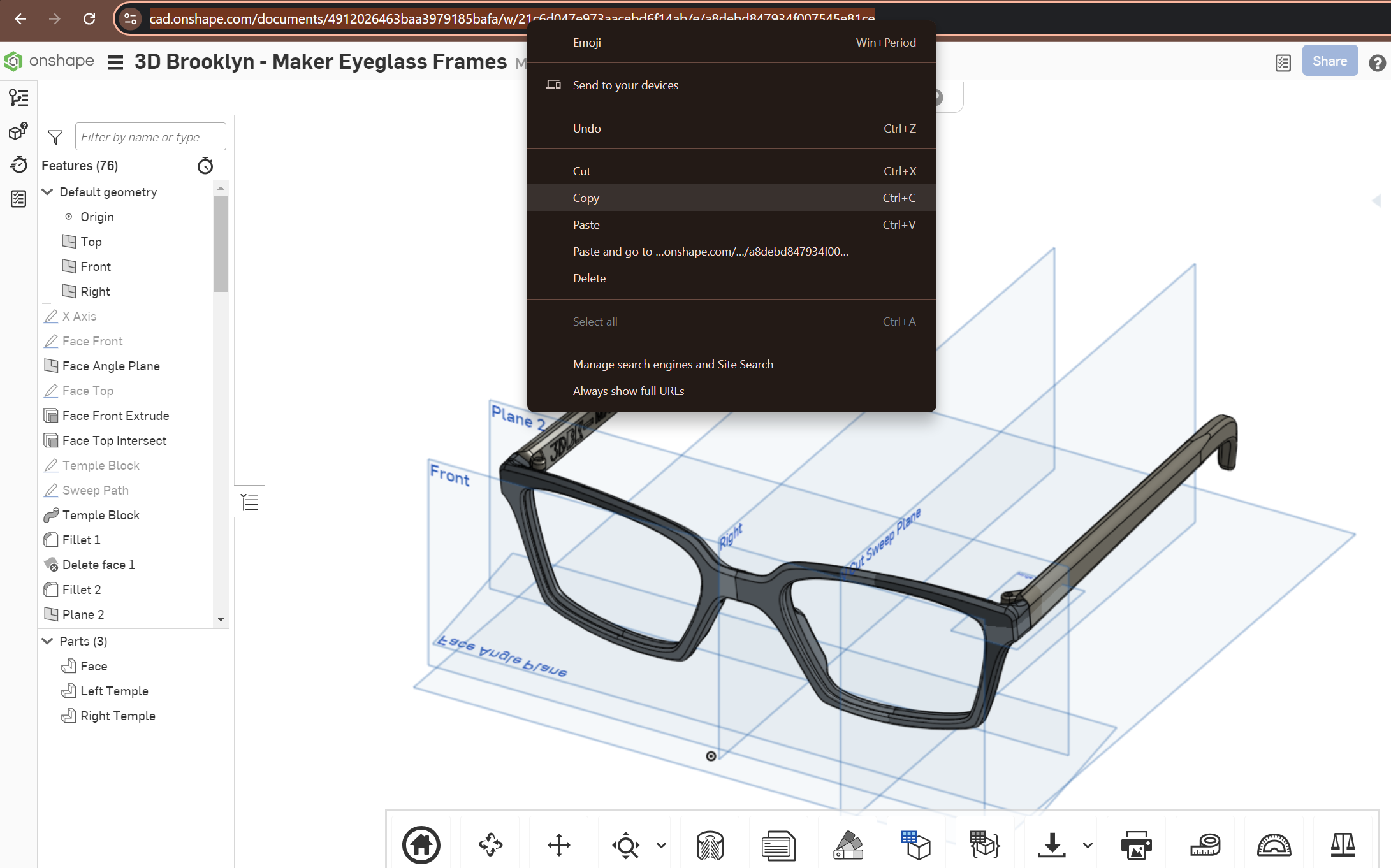
Click on the arrow to open the URL paste popup

Paste your Onshape design's URL and click on the arrow.
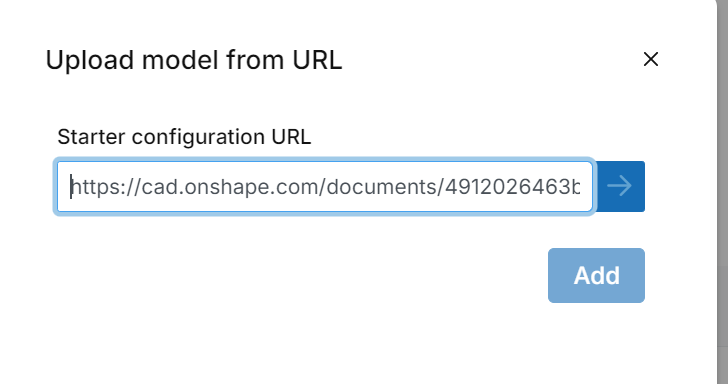
this will fetch the versions and the details about your design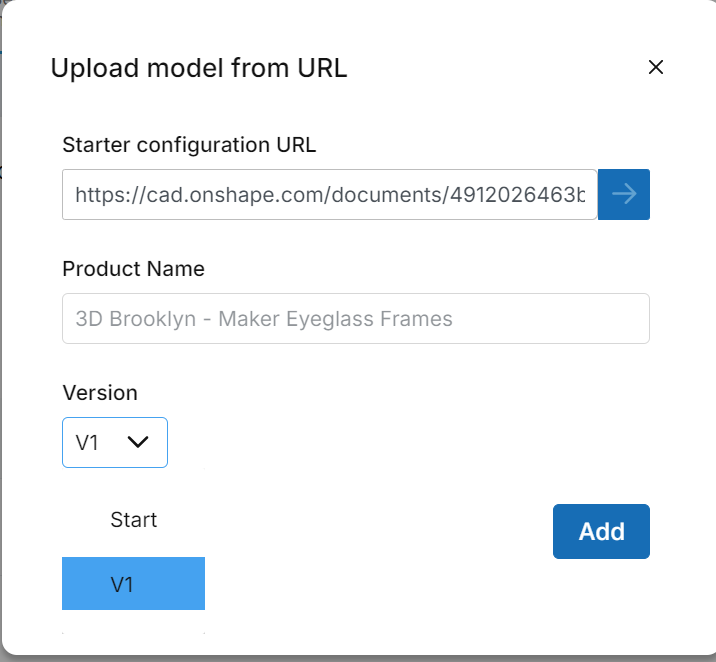
select
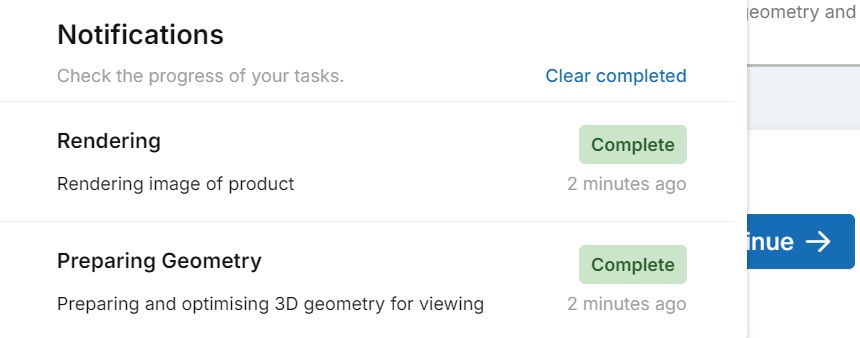
Addbutton to import the selected version of your design to Infitive platform.Once it is successfully uploaded you will receive a notification and then you can select
Continuebutton to specialize your CAD in Infinitive.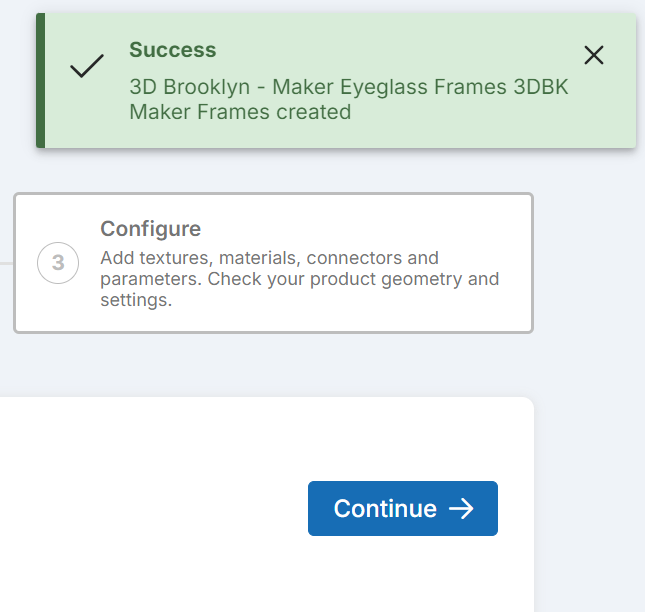
Upload CAD via choosing from the list
You can add your product by clicking on the
+icon next to your product from the list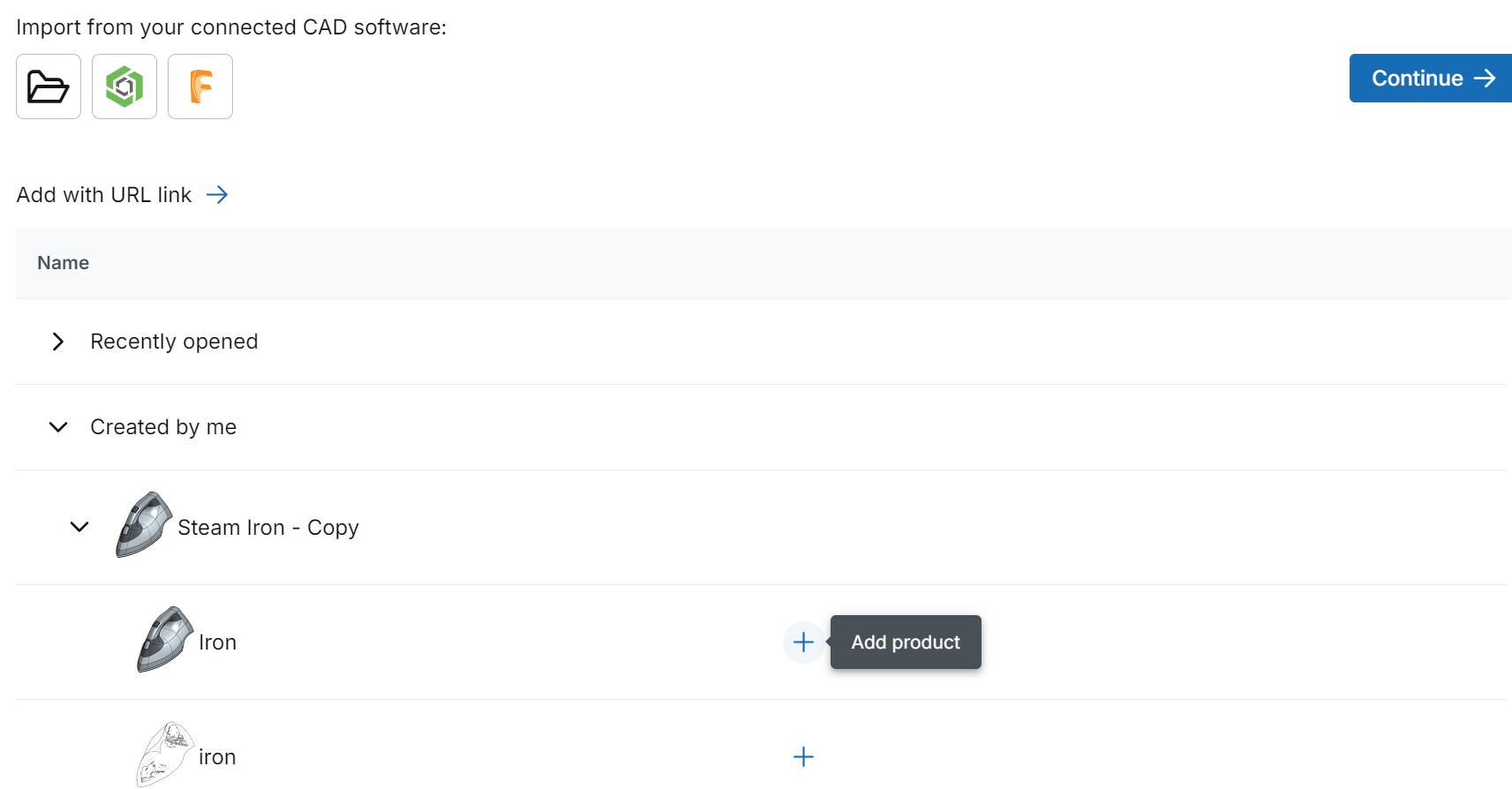
Once you clicked the
+icon a popup will show up and you need to choose from a version of your CAD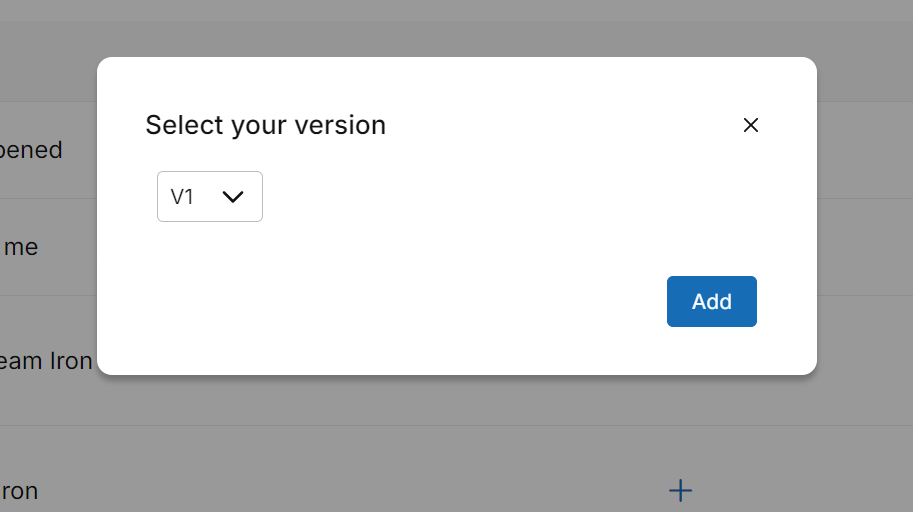
Once the tasks are complete you will see the in the notifications and then you can carry on to view your CAD in Infinitive 3D viewer
you can view your CAD by clicking on the
pencilicon that saysEdit
Here is how it is shown in Infinitive 3D viewer
